

How to Archive and Unarchive Chats on Telegram: A Step-by-Step Guide
Telegram, a popular messaging app known for its security, privacy features, and robust functionality, offers many features to help manage conversations efficiently. One of these features is chat archiving, which allows you to declutter your chat list by temporarily hiding chats you don’t need immediate access to. A chat only moves out of your main chat when it is archived, it can not be deleted. It can be very helpful for maintaining the organization of your chat list and concentrating just on ongoing discussions.
In this article, we will explore how to archive and unarchive chats on Telegram, whether you are using the mobile app (Android or iOS) or the desktop version.
Why Archive And Unarchive Chats on Telegram?
Archiving chats can help you:
- Declutter your main chat screen: If you have many active or passive conversations, archiving those you don’t need at the moment can simplify your view.
- Organize your chats: For conversations that are not currently urgent but you don’t want to delete, archiving is the perfect solution.
- Protect privacy: Sensitive or private talks can be kept out of the average person eye without being permanently deleted by archiving them.
- Telegram offers an easy way to archiving chats. Let’s now explore how different devices handle archiving and unarchiving.
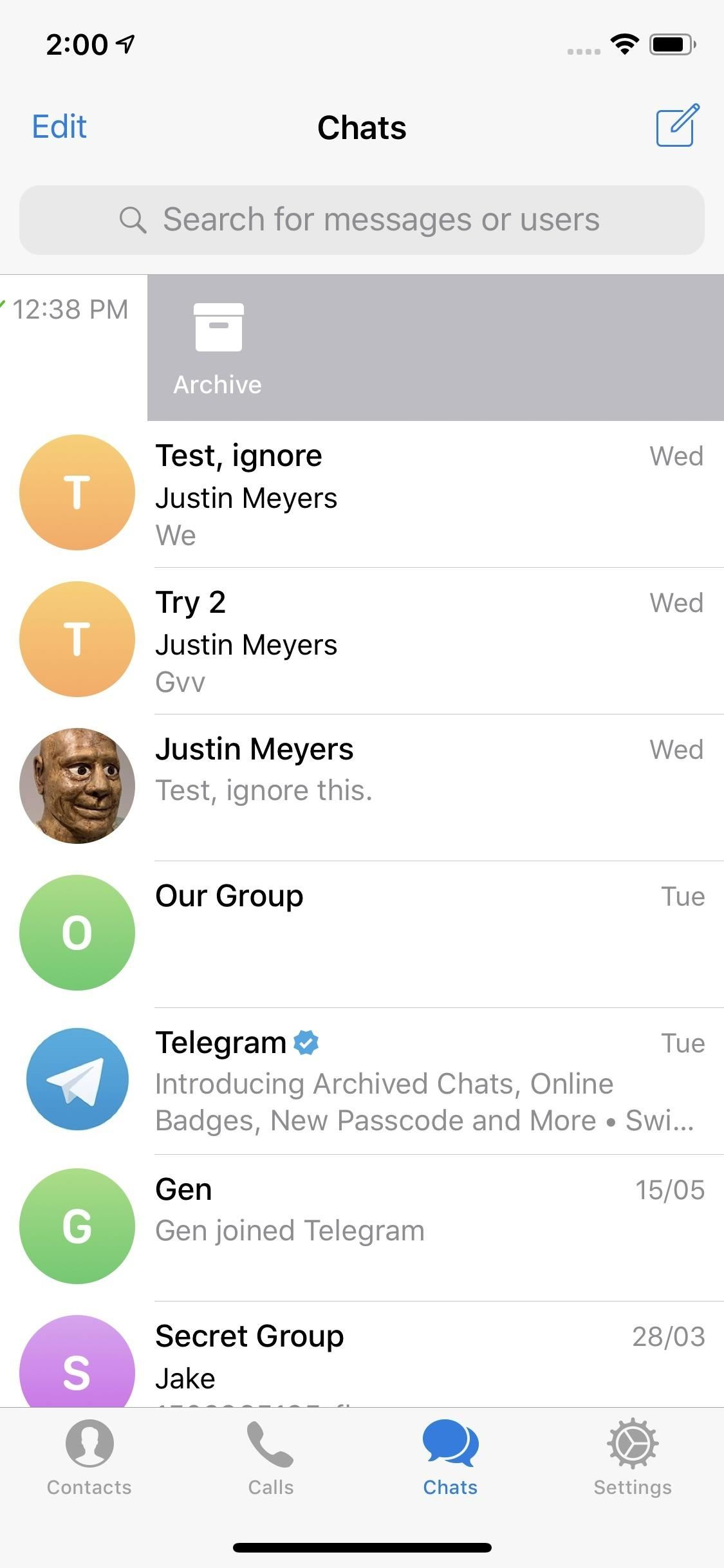
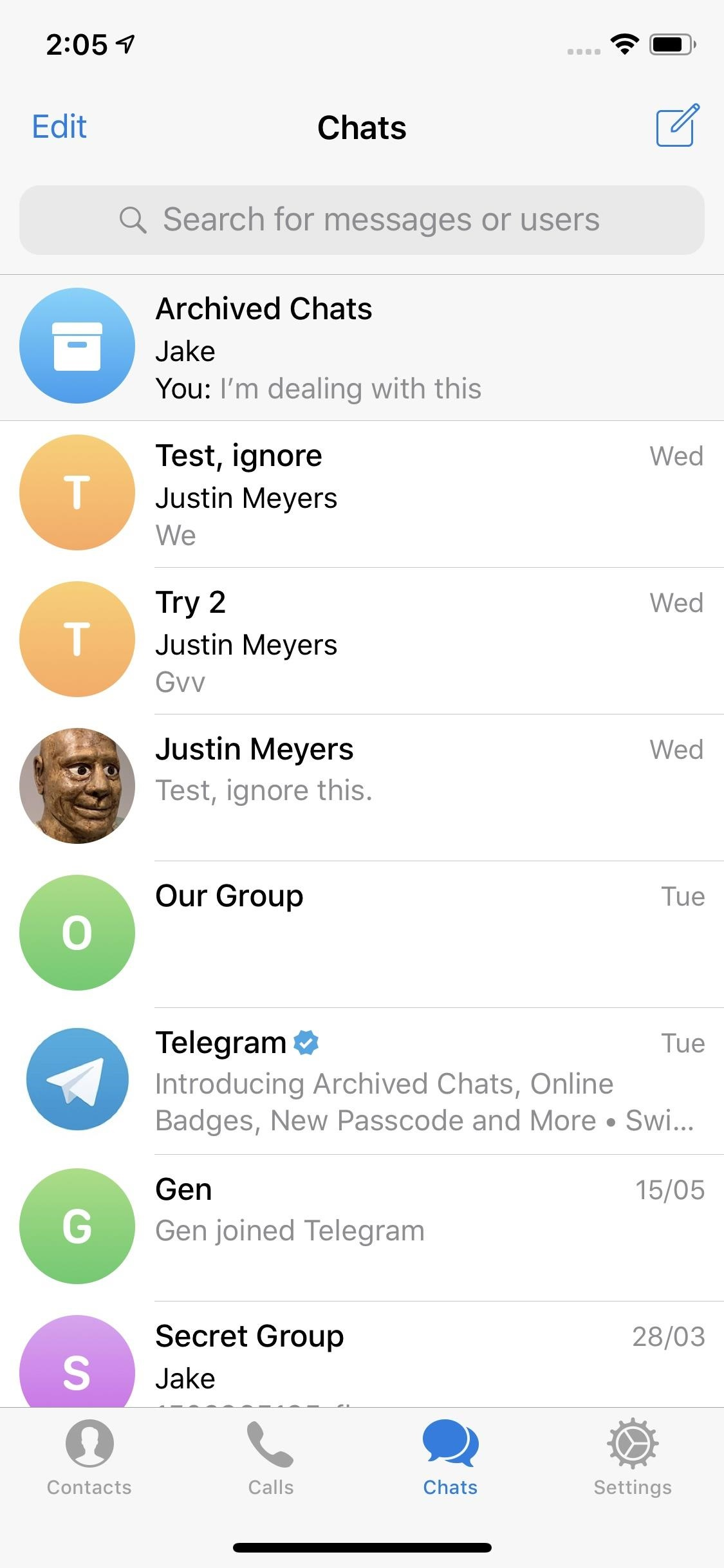
Archiving Chats on Telegram (Mobile App)
Android:
- Open the Telegram app: Start by launching the Telegram app on your Android device.
- Select the chat: Find the chat you wish to archive. This could be a group conversation, a one-on-one chat, or even a bot chat.
- Swipe to Archive:
- Swipe the conversation bar across the screen from right to left. The Archive option is going to become visible.
- To move the chat to the archived section, let go of your finger when the “Archive” popup appears.
- As an alternative, you can find the Archive icon (a box with a downward arrow) in the menu that show after long-pressing the chat you wish to archive.
- Access Archived Chats: After archiving, you’ll see a small Archived Chats folder appear at the top of your chat list. You can tap this folder to view all your archived chats.
iPhone (iOS):
- Launch Telegram: Open the Telegram app on your iPhone.
- Choose the chat to archive: Locate the conversation you want to archive.
- Swipe to Archive:
- Swipe the chat from right to left.
- When you swipe, you’ll see the Archive button. Simply release your finger to archive the chat.
- Alternatively, you can press and hold on the chat and select Archive from the options that appear.
- Find Archived Chats: Your conversations will be moved to the Archived Chats folder at the top of your chat list once they have been archived. You can read your archived messages by tapping on this folder.
Telegram Chat Archiving (Desktop Version)
- Open Telegram Desktop: Launch the desktop version of Telegram on your Mac or PC.
- Select the chat: Find the conversation you want to archive.
- Right-click the chat: Right-click on the chat in your list.
- Choose Archive: From the context menu that appears, select Archive Chat. This will move the chat into the archived section.
- Access Archived Chats: Your archived chats will appear in a section at the top of the chat list, labeled Archived Chats. Click on this section to view archived conversations.
How to Unarchive Chats on Telegram
If you decide that you need to bring back an archived chat into your main chat list, unarchiving is just as simple.
Android:
- Open the Telegram app: Go to your Telegram app.
- To access Archived Chats: The Archived Chats location can be found by scrolling to the top of your conversation list.
- Unarchive a chat:
- Find the conversation you want to unarchive.
- Swipe the chat from left to right to reveal the Unarchive option.
- Alternatively, you can tap and hold the conversation and select the Unarchive button that appears in the options.
- Return to Main List: The chat will return to your main chat list.
iPhone (iOS):
- Open Telegram on your iPhone.
- Tap the Archived Chats section at the top of your chat list to access Archived Chats.
- Unarchive a chat:
- Select the conversation you wish to unarchive.
- On the chat, swipe left and choose Unarchive.
- As an alternative, you can choose Unarchive from the menu by pressing and holding on the chat.
- Return to Active Chats: The chat will be moved back to your active chats list.
Desktop:
- Open Telegram: Launch the Telegram desktop app.
- Navigate to Archived Chats: Click on the Archived Chats section at the top of your chat list.
- Unarchive a chat:
- Right-click on the chat you want to unarchive.
- From the context menu, choose Unarchive Chat.
- Reappear in Main List: The chat will now be restored to your main chat list.
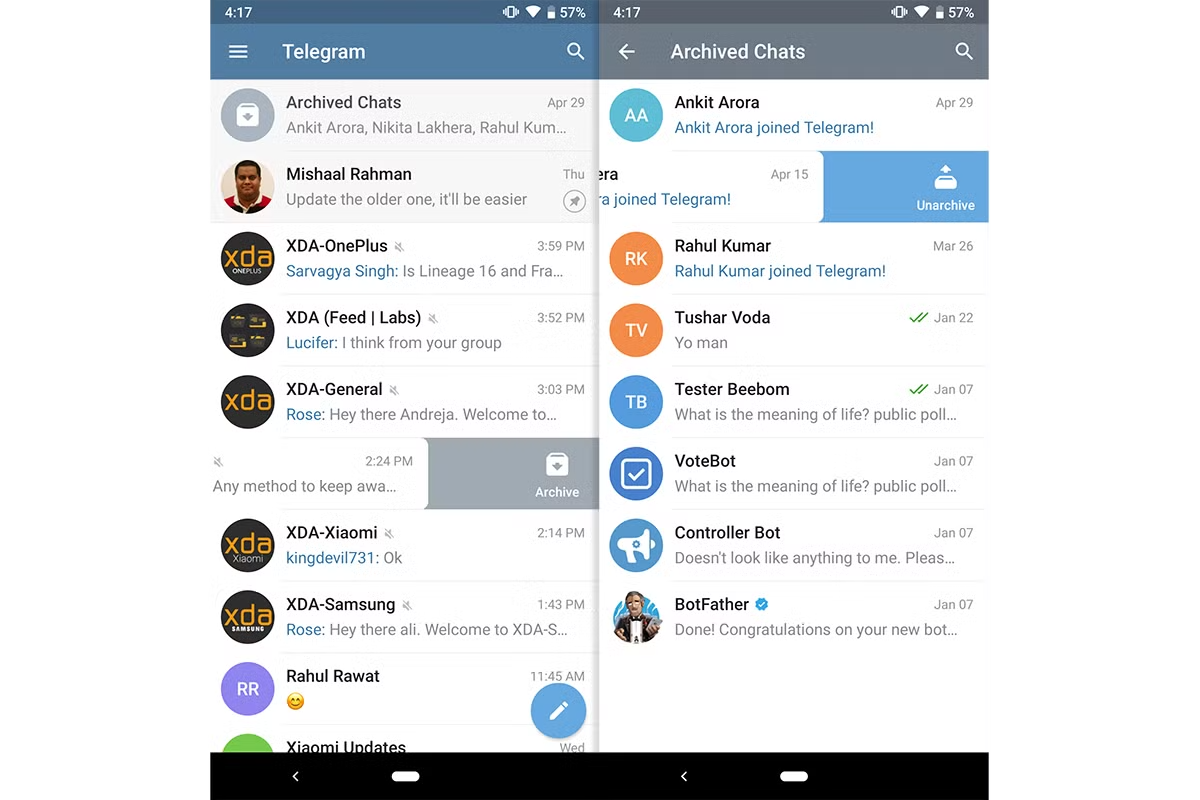
Management of Archived And Unarchive Conversations
- Chats That Are Archived Remain Archived Until They Are Unarchived: Till you manually unarchive it, any new messages you receive in an archived conversation will remain kept.
- Muting: To avoid being distracted by notifications for inactive conversations, you can mute chats before archiving them.
- Group Chats: Archiving functions similarly for both solo and group chats. Conversations of any kind can be kept or unarchived as required.
Conclusion
On Telegram, archive and unarchive chats is a simple and efficient method of managing your discussions. The process is quick and easy whether you’re using Telegram on a desktop or a mobile device. With the guidance of this instrument, you can quickly arrange and rank your conversations, maintaining a seamless and clutter-free Telegram experience.
Keep in mind that archiving is just a temporary solution to hide conversations. You can view your messages at any moment, and not one are deleted. To keep your conversation list neat and manageable, make the most of Telegram’s archiving feature!